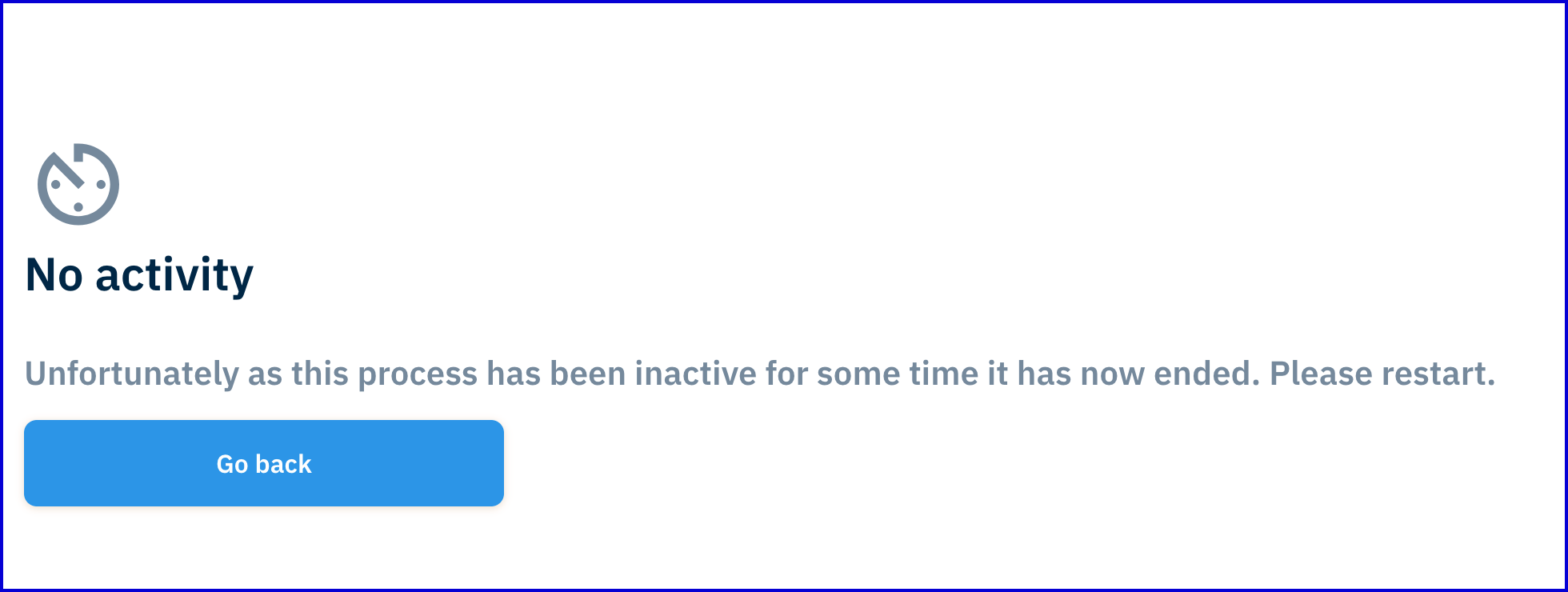
A timeout boundary event will occur when an end-user has not performed the necessary action of an activity, allowing the flow to timeout. When a timeout event occurs, it may be required to redirect the end-user to a specified URL outside of the TrustWeb application. The 'timeoutRedirectUrl' Process Token parameter can be used to define the redirect URL that will handle redirect for all timeout boundary events within a Process Definition.
Configure the Process Definition
To configure a new Process Definition, follow the steps outlined below.
Log in to the Backoffice application and navigate to the Process Definition page found on the left-side vertical navigation bar.
Click the 'New Process Definition' button to open a pop-up modal where a new Process Definition can be created from scratch or based on an existing template.
The following Process Definition will be used as an example:
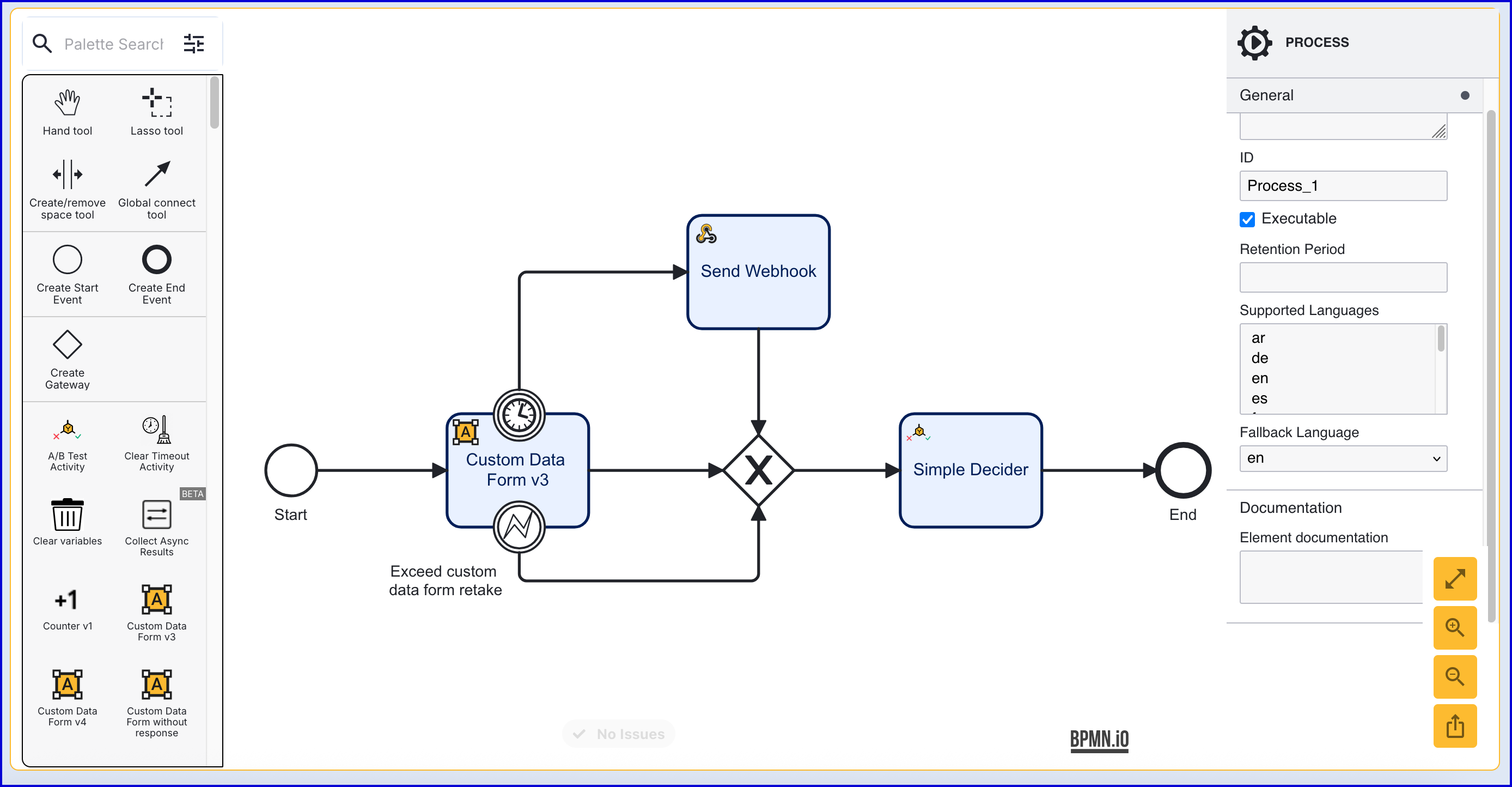
From the example above, when a timeout error event occurs on the 'Custom Data Form v3' activity, the user will be redirected to the URL defined in 'timeoutRedirectUrl' parameter and send a webook before completing.
Configure the Process Token
After configuring the Process Definition, create a Process Token that includes 'timeoutRedirectUrl' in the Additional Parameters section of the token.
In the Backoffice application, navigate to Process Definitions > Process Tokens.
On the Process Tokens landing page, click the 'New Process Token' button. A popup modal will appear where details of the Process Token can be defined.
In the Additional parameters section, set the Key to 'timeoutRedirectUrl' and the value to the URL that the end-user will be redirected to.
Example:
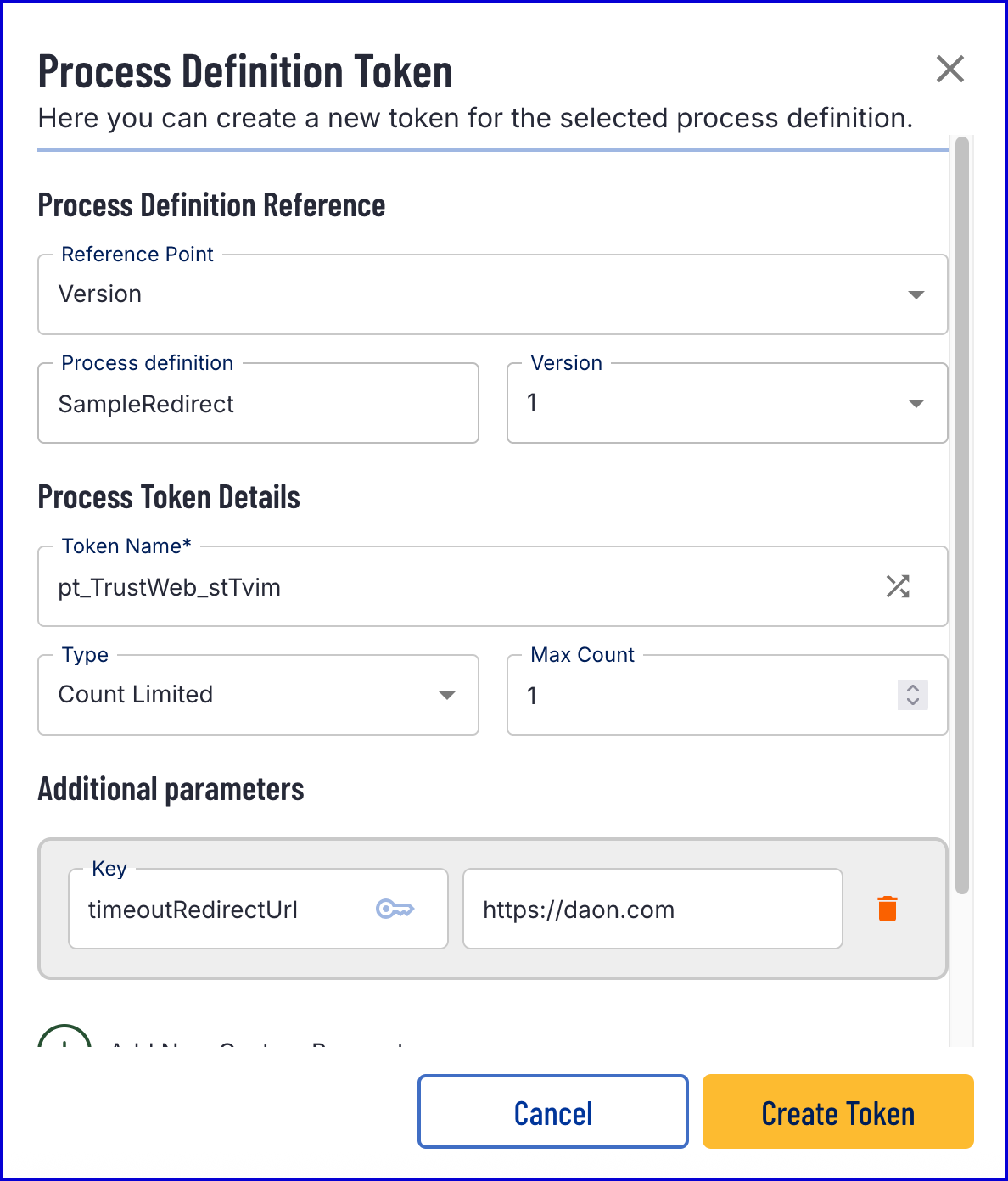
Click the 'Create Token' button to finalize the creation.
When the Process Definition times out and the end-user clicks the 'Go Back' button, they will be redirected to the URL defined to the 'timeoutRedirectUrl' parameter.