
Overview
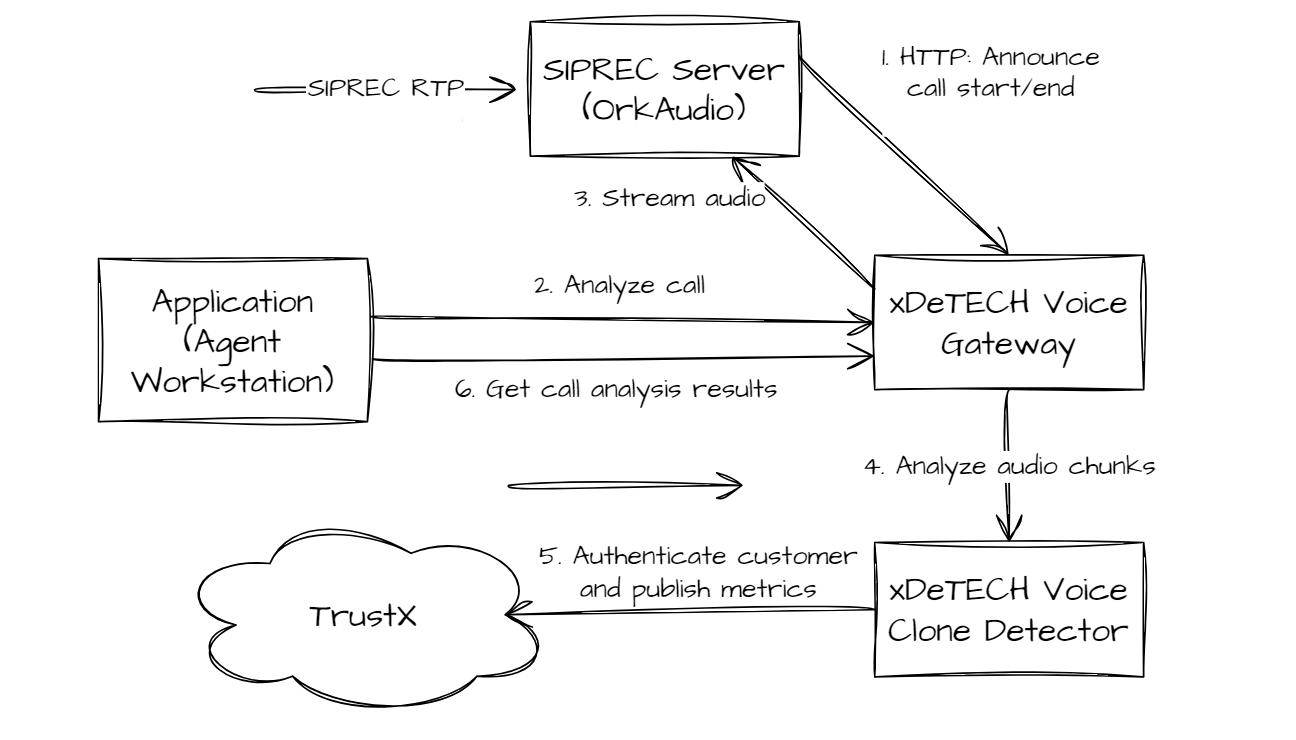
A typical xDeTECH deployment includes a SIPREC Server (OrkAudio) that will receive calls from the customer's Session Border Controller. The SIPREC Server connects to the VGSx over HTTP(S) and announces the start and end of voice calls it receives. Upon receiving an action to start analyzing a voice call, the VGSx will request the audio stream from the SIPREC Server via HTTP(S) and process it. This is demonstrated in the diagram below using an Agent Workstation as an example.
Installation
To install OrkAudio, follow the steps below.
Download the installer to the recording server system. Your Daon representative will provide details of the download. Untar the file:
tar -xvf orkaudio-commercial-2.11-1042.x6177.x86_64.centos7.gcc48-installer.tarRun the installer
./orkaudio-commercial-{version}-installer.shNOTE: if PERL is not installed the following error will be shown:./orkaudio-commercial-{version} installer.sh:line 27:/usr/bin/perl: No such file or directory,`` Install PERL with the following command# yum install perlAccept with “Y” all the Options offered and “l” to be able to copy the OrkAudio License later
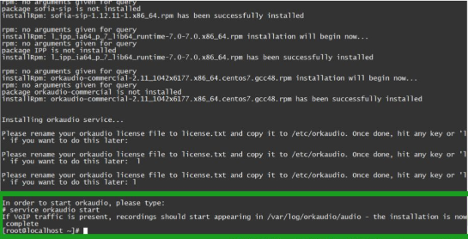
Please contact your Daon representative for the OrkAudio license. Once this has been received copy the provided Orkaudio license to /etc/orkaudio. Use any use any SFTP client, such as WinSCP,Filezilla or command-line SFTP. If the licence file is not already named licence.txt it must be renamed to license.txt to allow OrkAudio to find it. Alternatively, you can simply open the license file and copy/paste into a file named /etc/orkaudio/license.txt
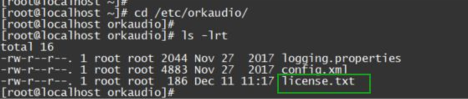
Edit the /etc/orkaudio/config.xml to add the server and port settings for the VGSx servers. Find the property TrackerHostname and add the DNS name or IP address and port number for each VGSx server that will be running as follows:
Where server1:port1 is the DNS name (or IP address) of server 1 followed by the port number of the REST services for the server.
Add or update the following properties to the config file to the following settings to prevent OrkAudio from saving any audio:
Rename the file to license.txt if needed
Start the OrkAudio service with
service orkaudio start
Stop the OrkAudio service with
service orkaudio stop
Verify that the Orkaudio service is running with the command
ps - ef| grep orkaudio

VGSx OrkAudio Connection Configuration
OrkAudio Command Endpoint in VGSx
Commands generated by OrkAudio, for example init and tape, must be sent to this endpoint in VGSx.
OrkAudio Server Locations
In order for VGSx to connect with OrkAudio servers, there must be a single line for each OrkAudio server in the sentinel-vgsx/config/application.properties file as follows:
A single VGSx server may support multiple OrkAudio servers and there must be one line for every OrkAudio server.
nameis the hostname parameter provided by OrkAudio when it connects to VGSx.servernameis the DNS name or IP address of the server on which OrkAudio is installed.