When defining the type of ID document to be captured during a TrustX flow, it may be required to restrict the type of document while also accepting documents with different parameters. For example, the document type may be restricted to PASSPORT while accepting passport documents from multiple countries.
This document will outline how to configure a Process Definition using the 'Define Document Type' and 'Acceptable Document Type' activities to define and customize the acceptable ID documents required during a document capture flow.
Create a new Process Definition
Create a new Process Definition in the Backoffice by following the instructions below:
Login in to the Backoffice application and navigate to Process Definitions > New Process Definition.
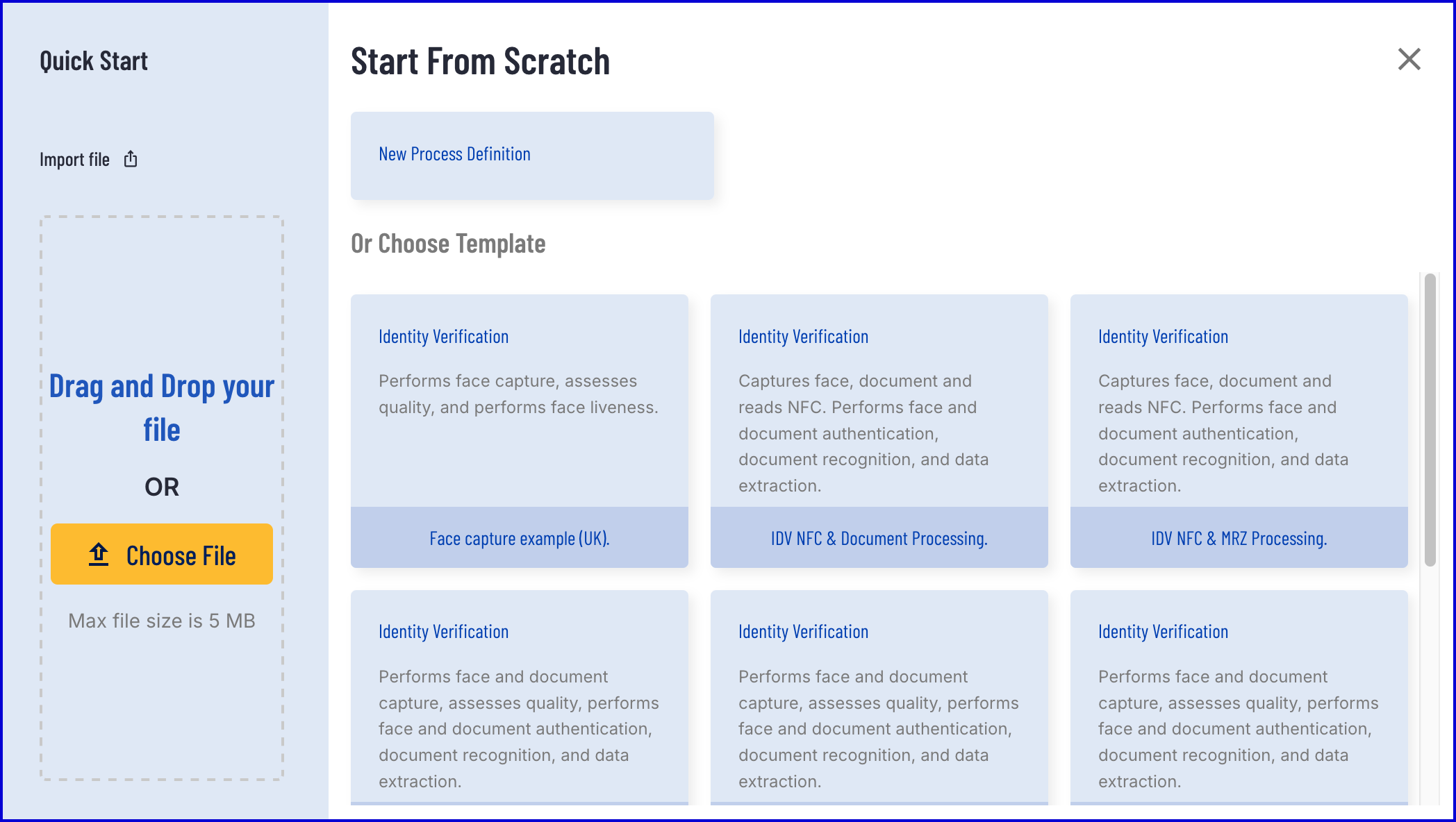
Choose a template or create a new Process Definition from scratch. This example will use a standard Document Capture flow as a base.
Configure the Process Definition
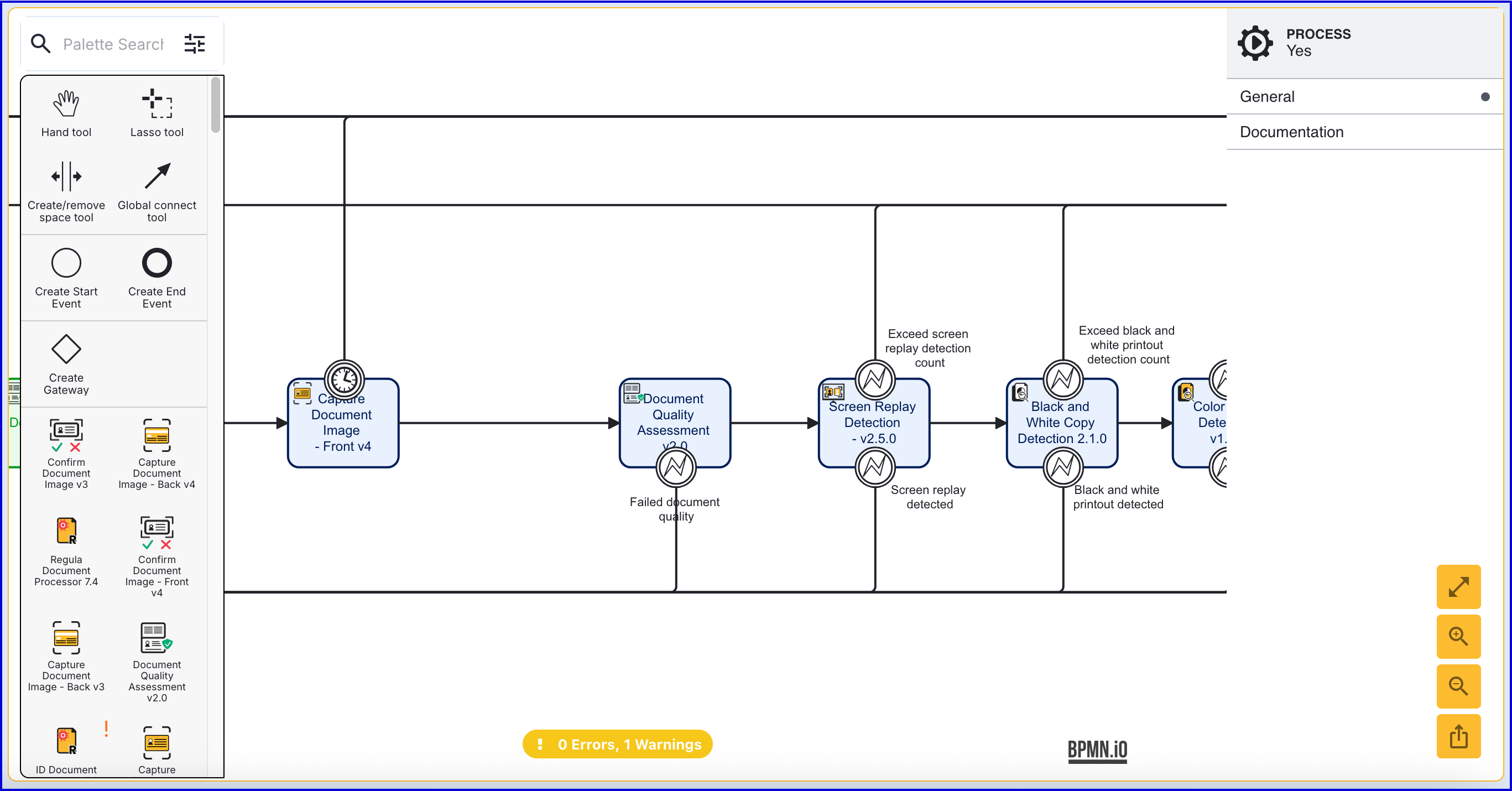
This section will describe how to configure the activities to configure a defined document type flow.
Before the 'Capture Document Image' activity, add a 'Define Document Type' activity and connect them using the Global Connect Tool.
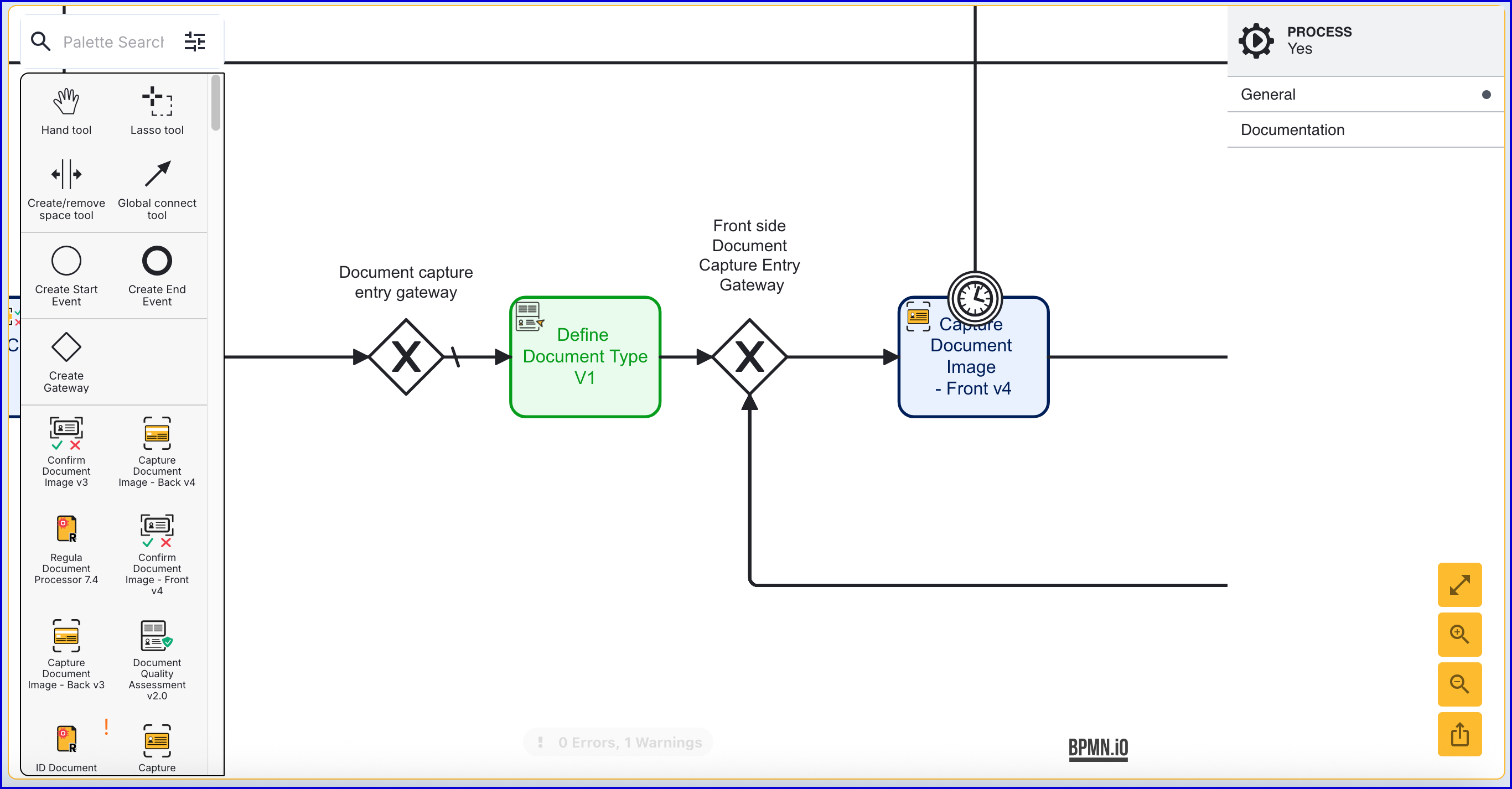
The 'Define Document Type' activity supports the following input parameters:
Name | Type | Description |
|---|---|---|
Acceptable Countries | List[String] | A list of document countries that will be accepted. |
Country Code | String | The two-letter country code of the document |
Document Key | String | The unique key associated with the document type. |
Document Type | String | The accepted document type. |
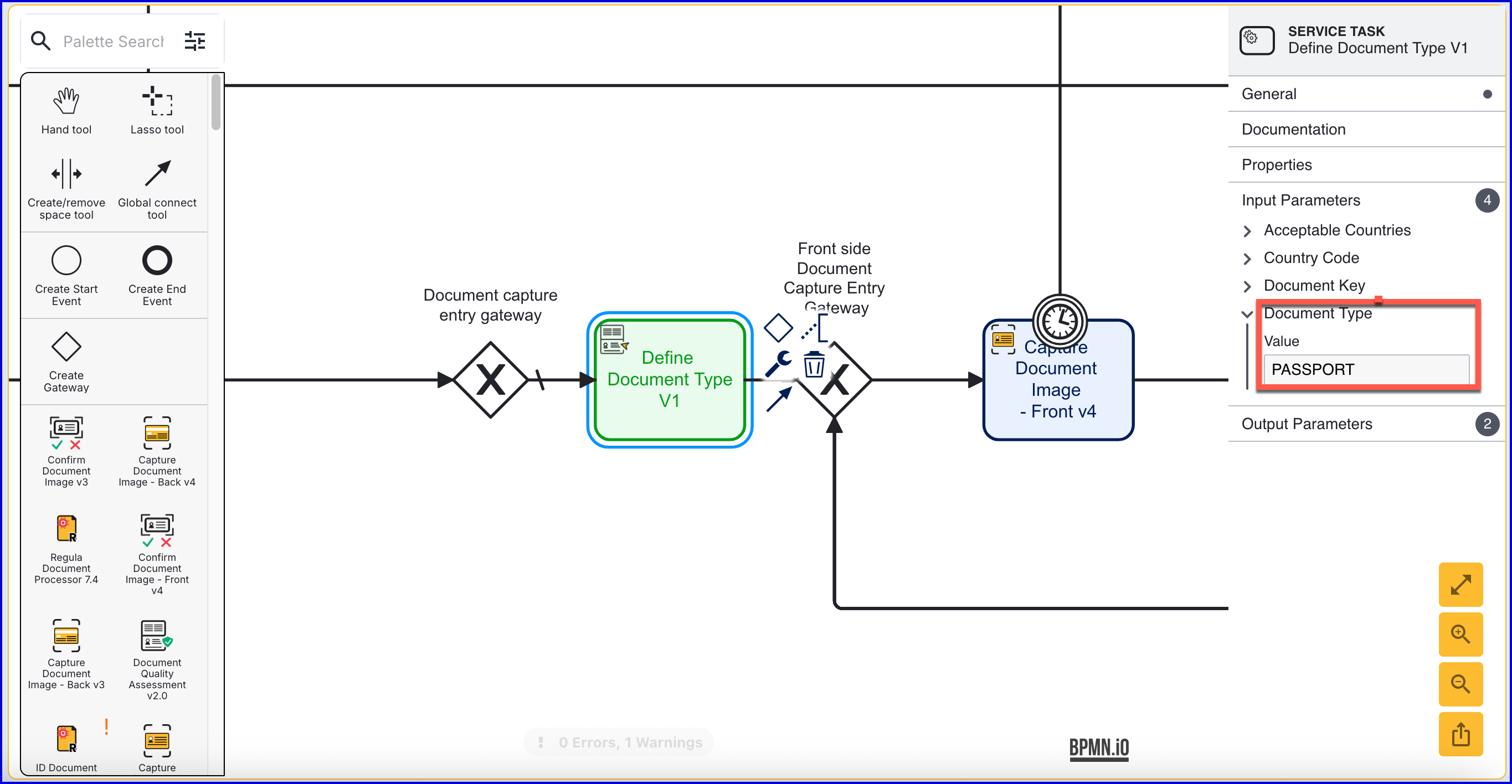
To configure input parameters, click the 'Define Document Type' activity to expand the right-side context menu. In the example below, the Document Type has been set to "PASSPORT".
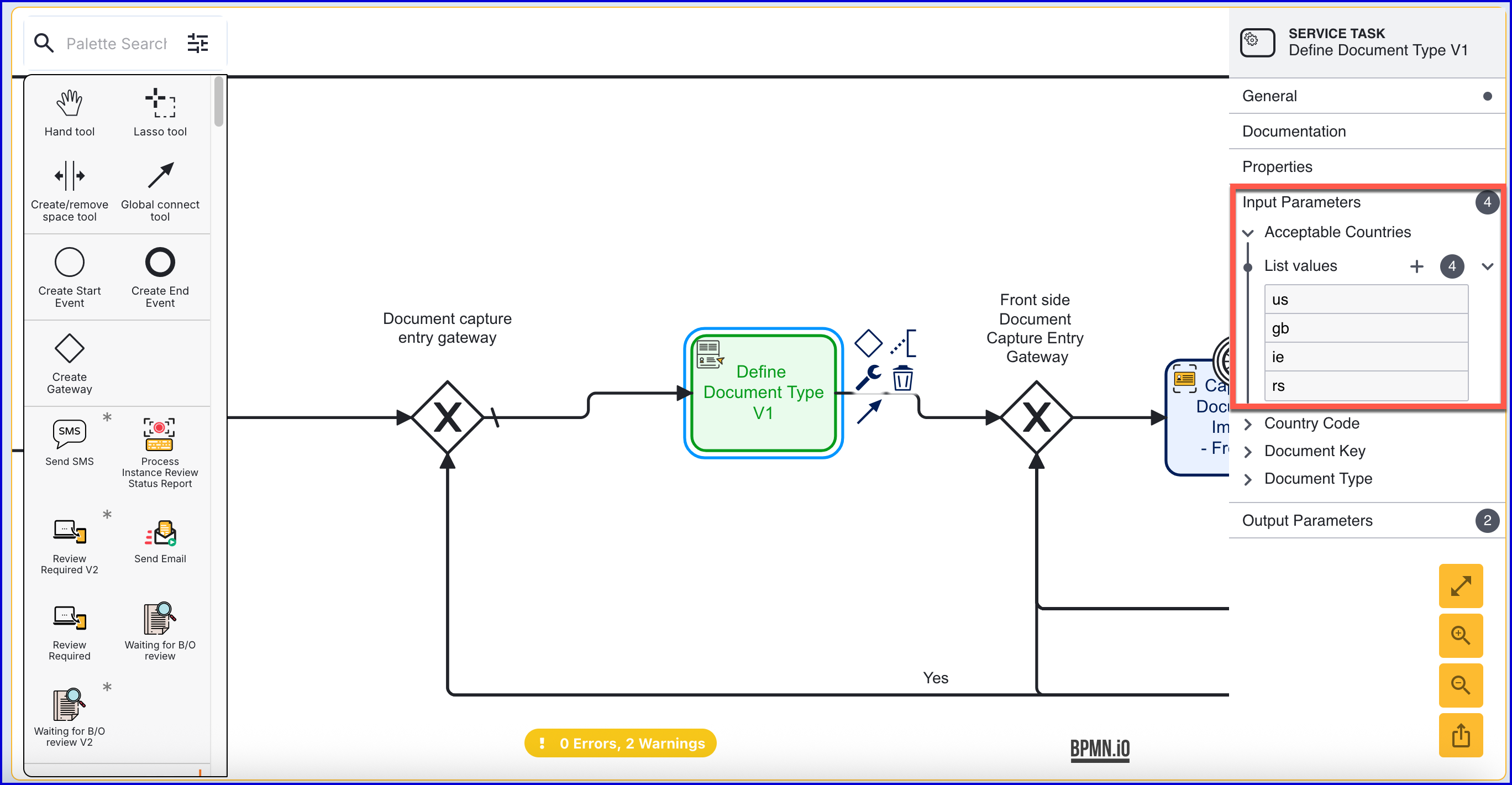
The 'Acceptable Countries' input parameter will be defined with the following values:
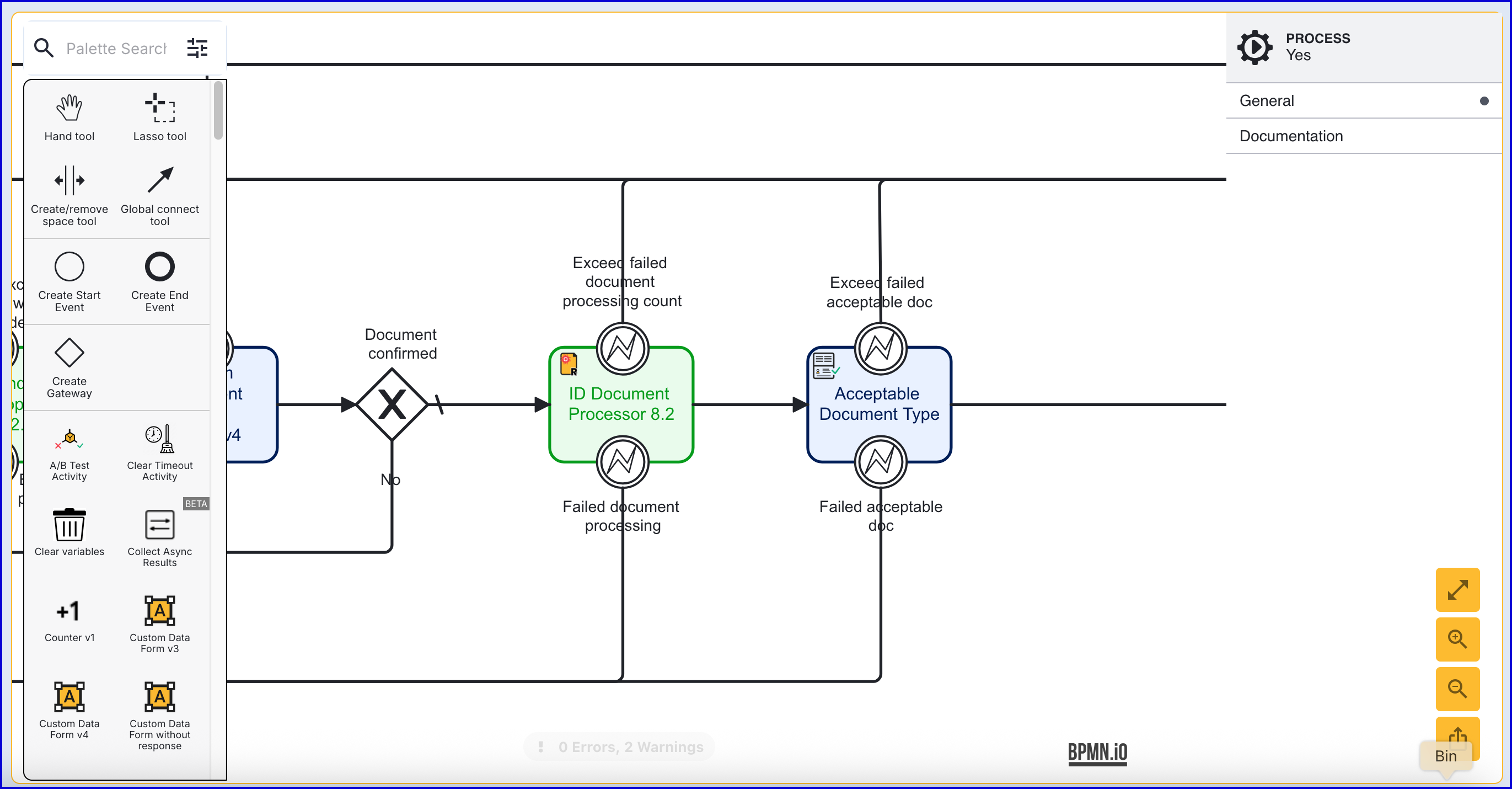
After the document is processed by the 'ID Document Processor' activity, add an 'Acceptable Document Type' activity and connect them using the Global connect tool.
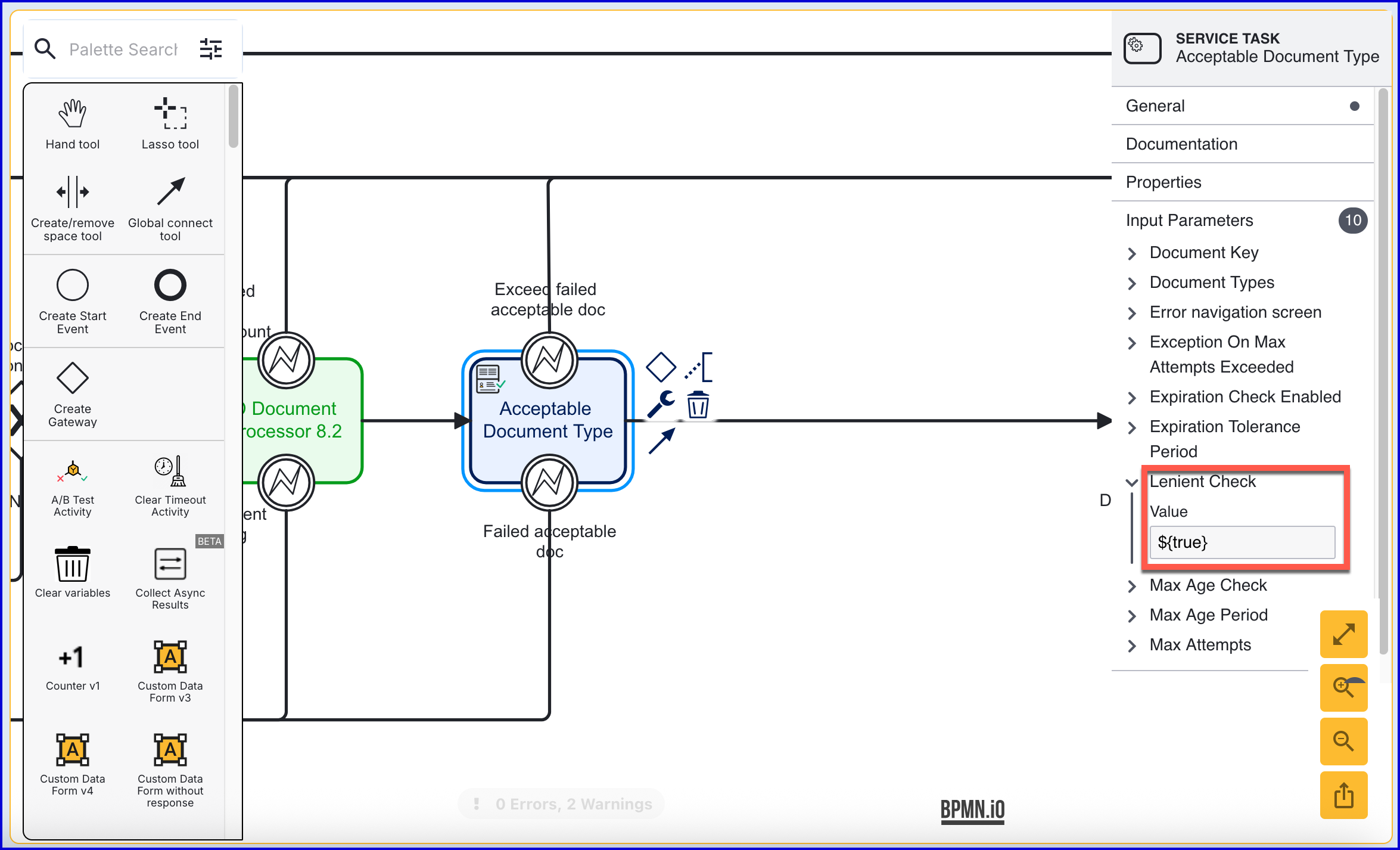
The 'Acceptable Document Type' activity supports the following configurable input parameters:
Name | Type | Description |
|---|---|---|
Document Key | String | The identifier of the document |
Document Types | List[String] | The list of accepted document types |
Error navigation screen | String | The screen to show when an error occurs. |
Exception On Max Attempts Exceeded | Boolean | If the maxAttempts is exceeded, should exceedFailedLivenessCount exception be thrown |
Expiration Check Enabled | Boolean | Is the expiration check enabled for the document |
Expiration Tolerance Period | String | How long after a document has expired, the document will be accepted |
Lenient Check | Boolean | Whether the checks will use a more lenient threshold |
Max Age Check | Boolean | Determines if the maximum document age check is applied |
Max Age Period | String | The maximum age a document may be i.e. the time since issuance |
Max Attempts | Integer | The number of failed attempts of face liveness before the exceedFailedLivenessCount exception is thrown |
Click the 'Acceptable Document Type' activity to expand the list of input parameters from the right-side contextual menu. Set the 'Lenient Check' input parameter to ${true}. This field will allow the process to ignore the document type and document country checks when reaching this activity.