
Early Access
Archiving provides TrustX users the ability to retain Process Instance data for longer than the 90 days typically permitted. Archiving Process Instances involves creating an Archive Policy and adding Process Instances to the archive using an existing policy. Process Instances can be archived via Process Definition or via the TrustX API. This guide will demonstrate each implementation.
An archive policy is required to archive Process Instances. To create an archive policy, follow the steps outlined in the Archive Policy Guide.
Archiving Via Process Definition
Process Instances can be archived using the 'Archive Process Instance' activity. Adding this activity to a Process Definition will add Process Instances using this Process Definition according to the archive policy defined within the activity.
The example Process Definition in this section demonstrates a simple face capture flow. An 'Archive Process Instance' activity will be added to the Process Definition to archive Process Instances completed with this Process Definition.
Step One - Create a Process Definition
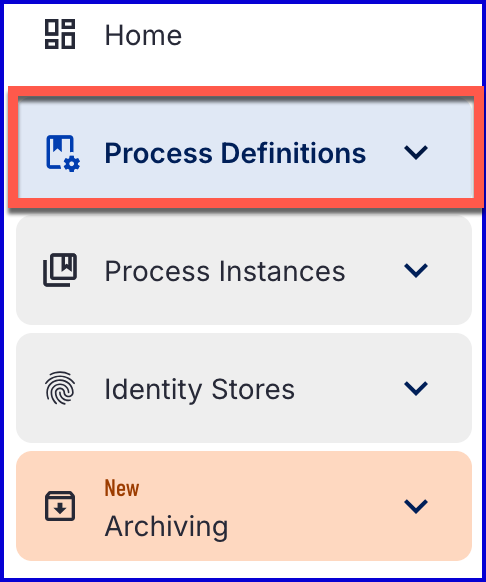
To create a new Process Definition in the Backoffice application, navigate to the 'Process Definitions' section using the left-side vertical menu.
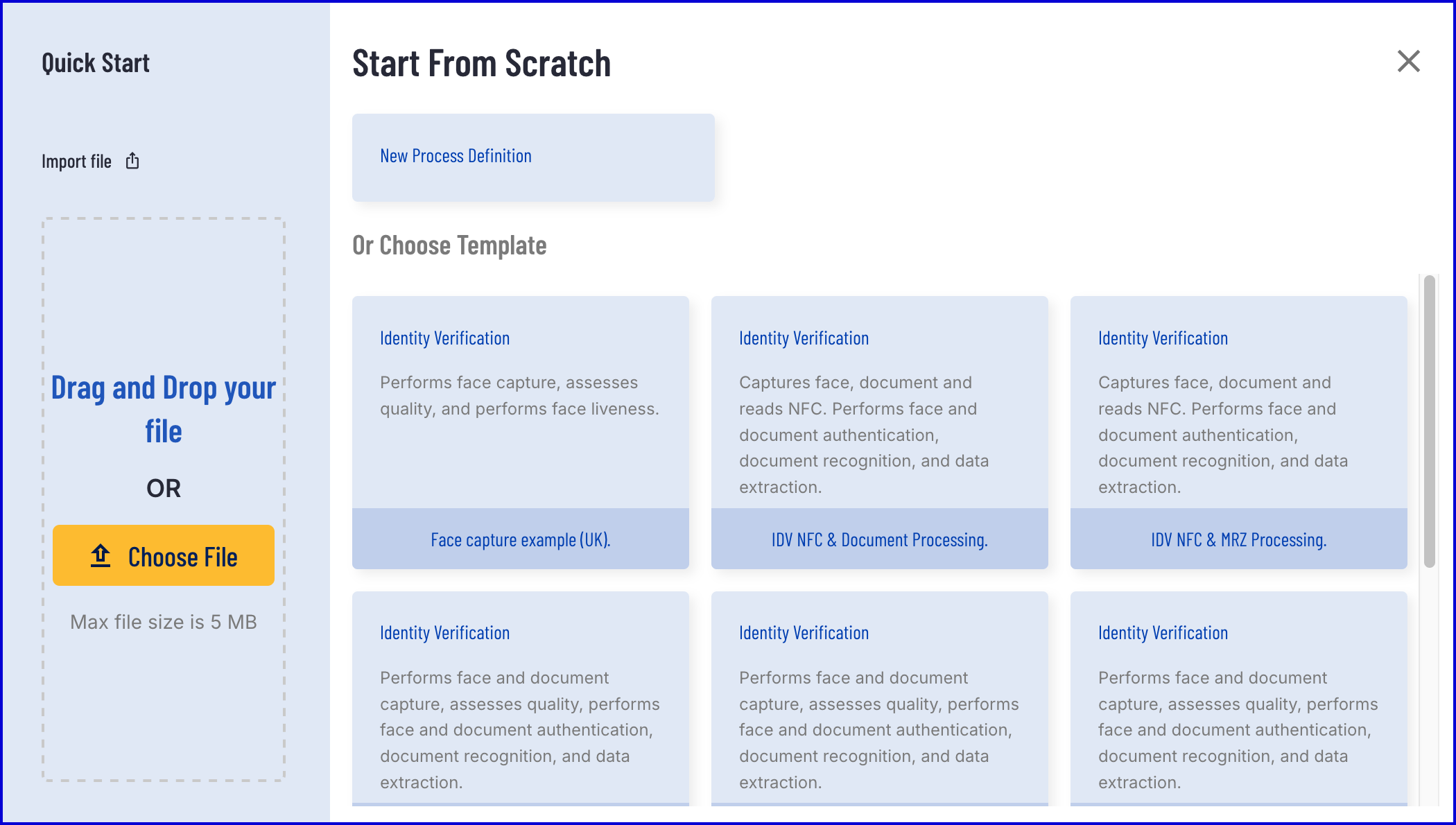
On the Process Definitions page, select the 'New Process Definition' button at the top-right of the screen. A popup modal will appear where a new Process Definition can be created from scratch, uploaded from a file or using one of the existing templates. In this example, a face capture template will be used.
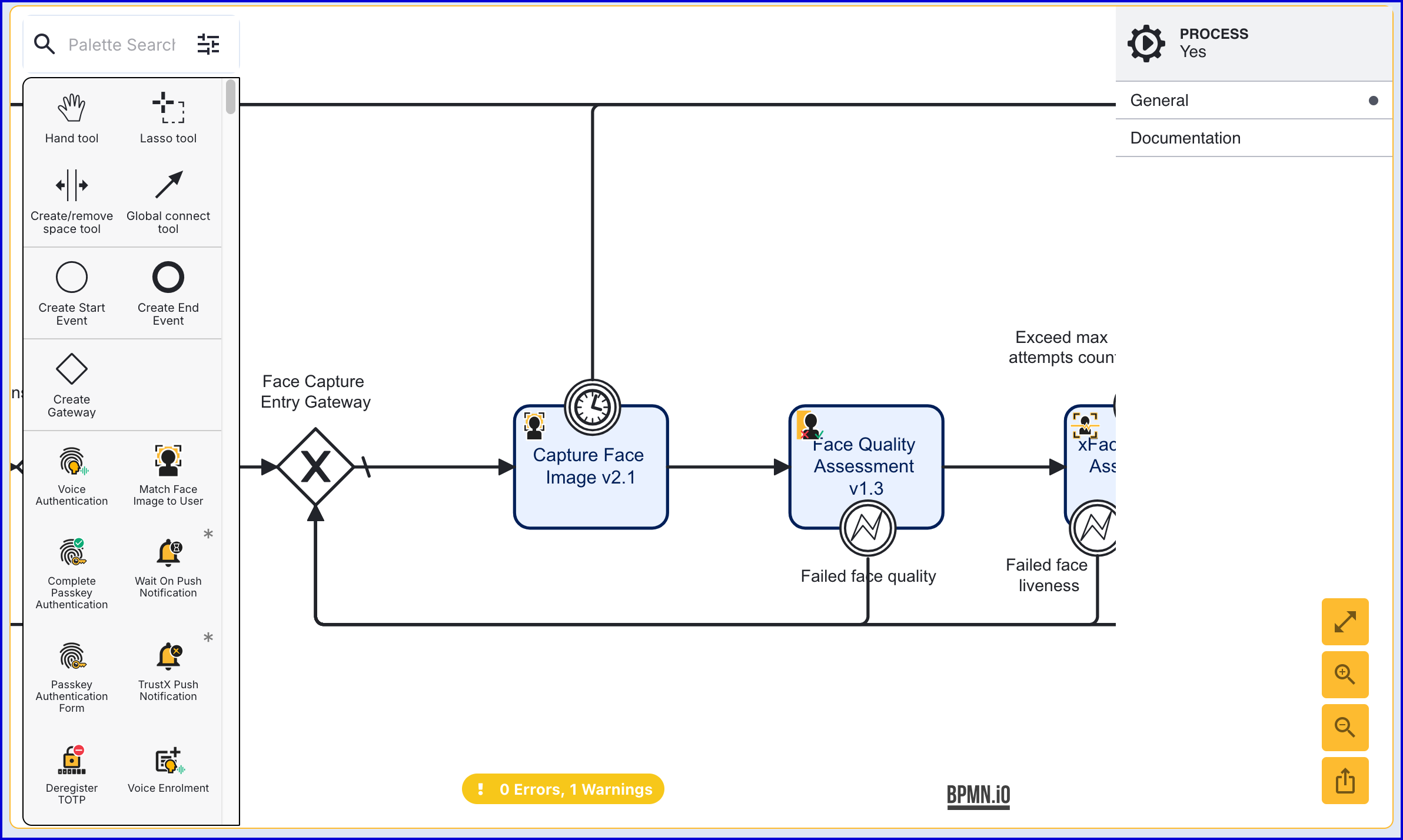
As mentioned above, this guide will use a standard face capture process as an example.
Step Two - Add the Archiving Activity
In this step, the 'Archive Process Instance' activity will be added to the Process Definition and configured using the provided input parameters.
At the end of the Process Definition, after all capture operations have been complete, add a 'Archive Process Instance' activity to the Process Definition. Use the 'Global connect tool' to connect the activity.
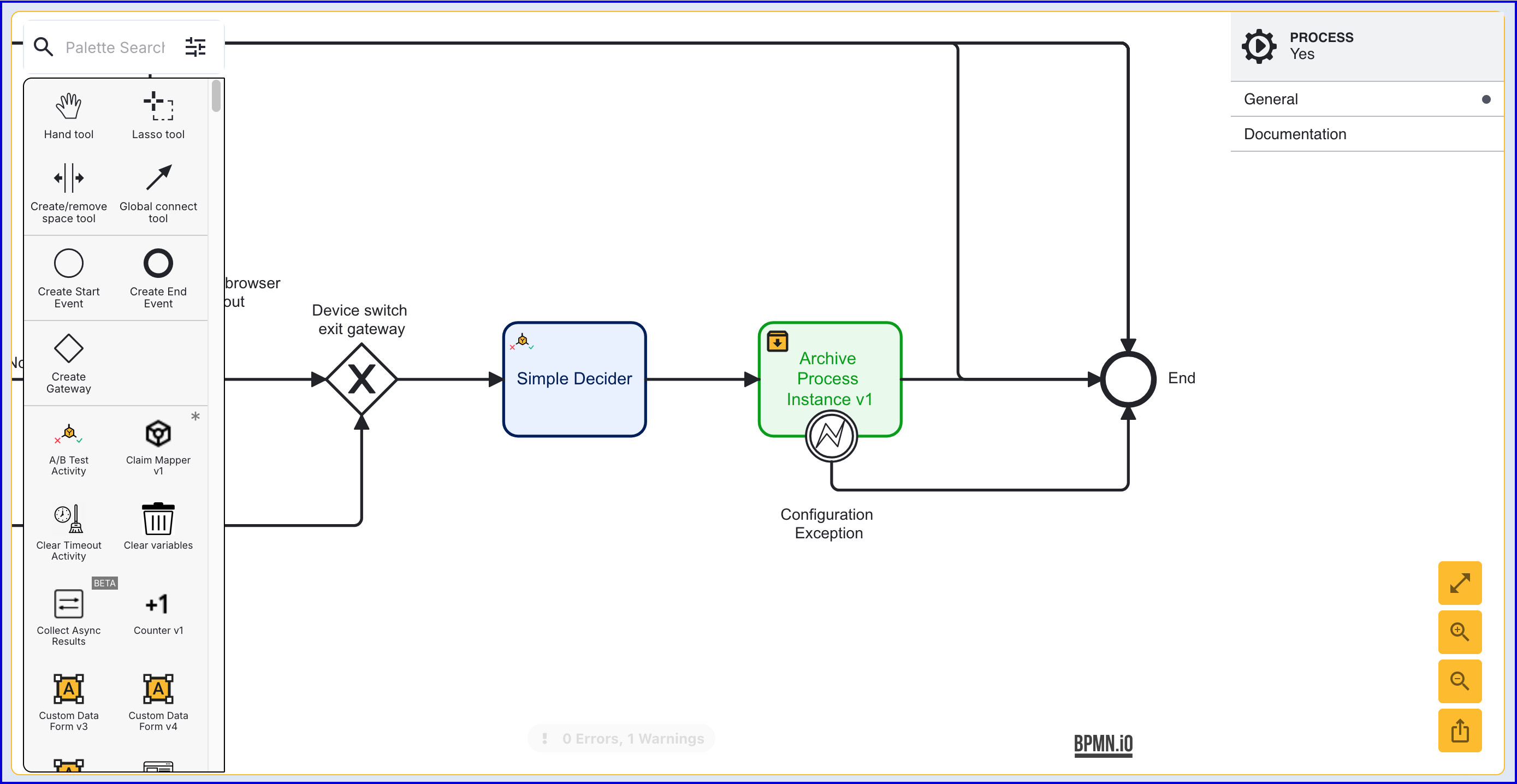
The activity supports the following input parameters:
| Parameter | Description | Type | Required | Default |
|---|---|---|---|---|
| Archive Key | A unique ID that identifies the archive attempt. | String | Yes | archiveKey1 |
| Archive Policy Name | The name of the archive policy used to archive the Process Instances. | String | Yes | |
| Archive Policy Version | The version of the archive policy. | Integer | Yes | |
| Cloud Secrets | A list of cloud secrets to pass to the archive activity. | List[String] | No | |
| Process Variables | A list of process variables to pass to the archive activity. | List[String] | No |
The activity also includes a 'Configuration Exception' error event that is triggered when a configuration error occurs on the activity.
Test and View Results
To test the flow, create a new Process Token from the Process Definitions page.
Navigate to the Process Definitions page and find the new Process Definition.
Click the 'key' under the 'Actions' tab to create a new Process Token.
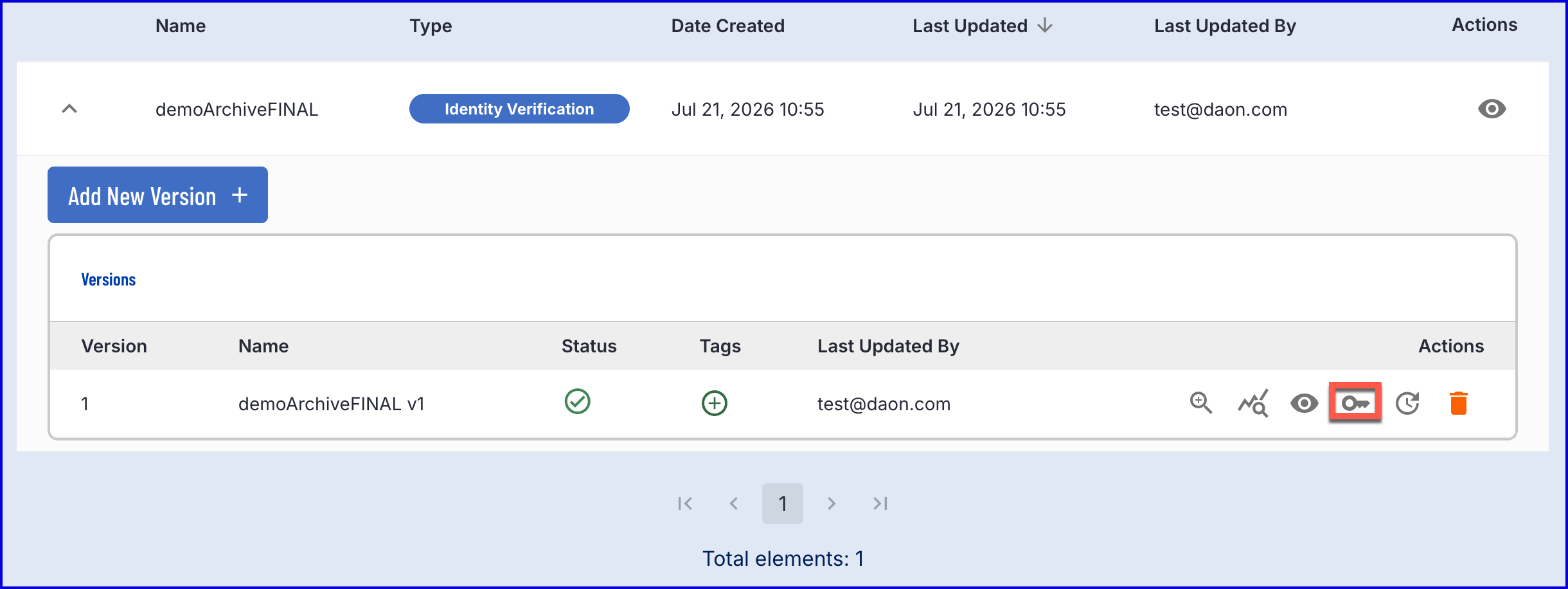
Once selected, a popup modal will appear where details regarding the token, including additional parameters, can be defined.
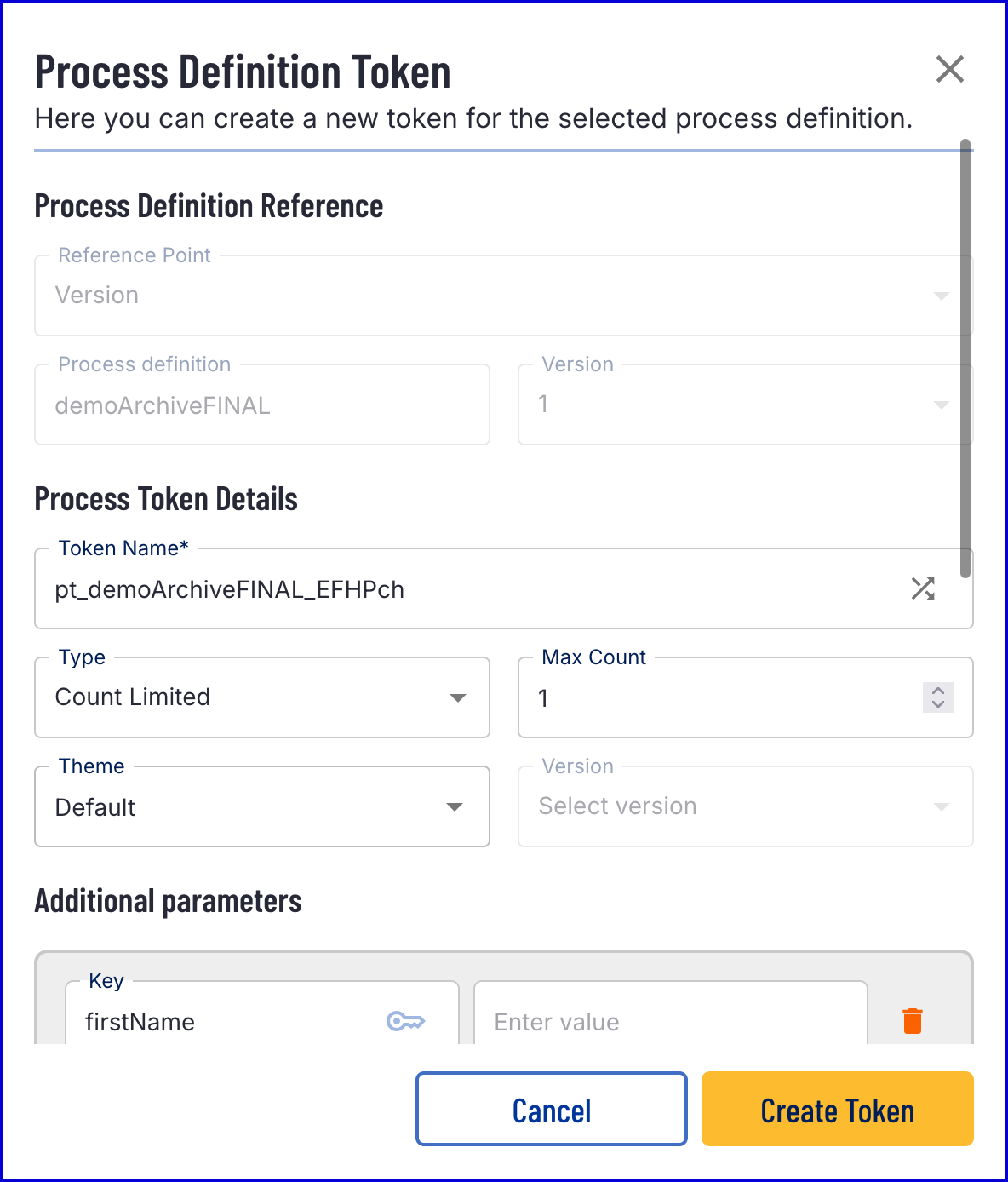
Click the 'Create Token' button to generate a new token which can be used to complete the Process Instance.
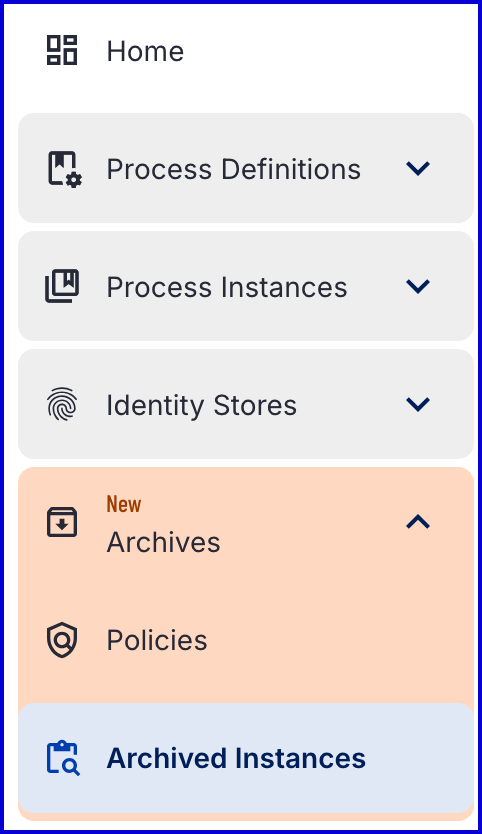
Once the flow is completed, navigate to the 'Archived Instances' page found on the left-side vertical menu of the Backoffice.
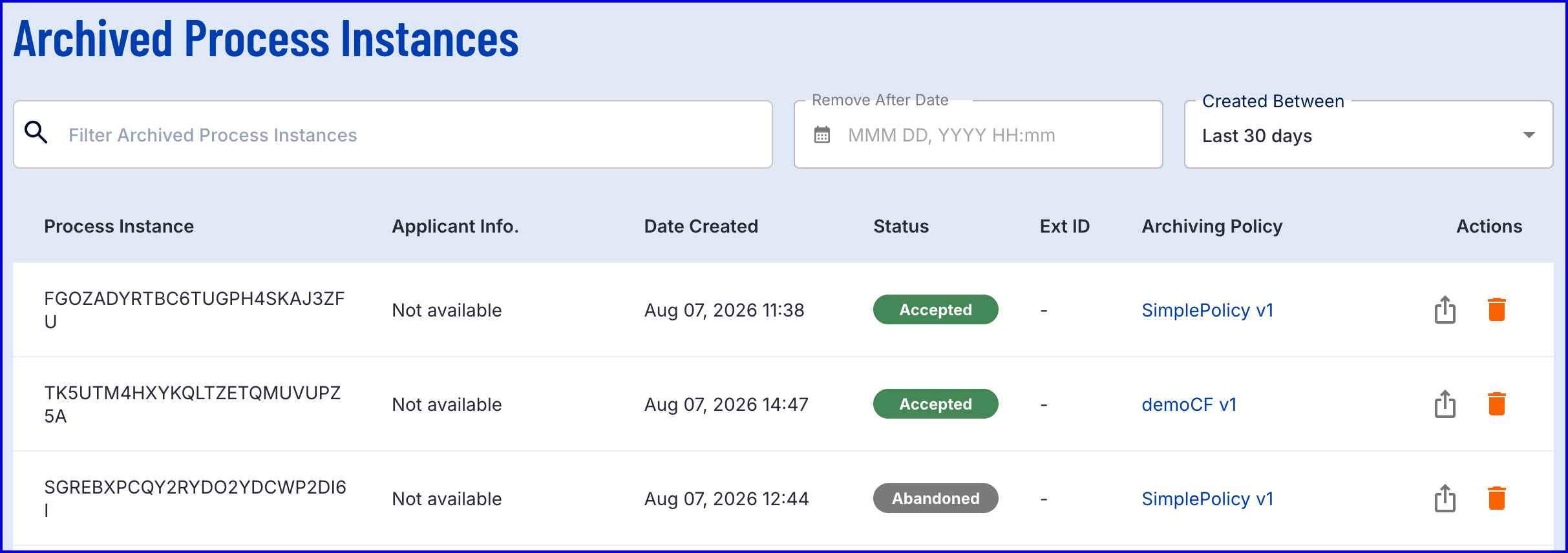
Use the search filter options to find the archived Process Instance. For a full guide on using the 'Archived Instances' page, see the Searching Archived Process Instances guide.
Archiving Process Instances Manually
Process Instances can be archived manually using the TrustX API. To utilize the TrustX API, an API Key is required. See the API Keys Guide for more information on generating an API key.
Archiving Process Instances
The example below demonstrates how to archive a batch of Process Instances that follow a filter criteria defined in the filter tag.
Example Request:
Example Response: